Open the PeriodlyWise Pregnancy Calculator and start with the date or record you already have. A date written in your maternity chart, the first day of your last period and the date on an IVF transfer record each tell the calculator something different. Use the method that matches your information and keep your care team’s documented due date handy if you already have one.
Try the calculator before entering your dates
- Select Try an example below the inputs. The calculator fills in fictional details and labels the output as an example. Use it to see where the due date, pregnancy age and export controls appear.
- Select Use my dates to leave the example and clear its entries.
- Open Calculate using, choose a method, and fill in its fields. The estimate updates as soon as it has enough information. Check the field message if a result is missing.
- Use Reset to start again. This clears the current form. Saved account records are managed separately.
Choose the dating option that fits your information
If your care team has already documented a due date, the known-date option is the simplest way to see your week and milestones on the same timeline. If you’re working from a report, read the labels beside the numbers before entering them. A gestational age on the scan date and a due date printed on the report are two different inputs.
| Option in the calculator | What to enter | What you’ll get and what to check |
|---|---|---|
| Option in the calculatorLast period | What to enterThe first day of your last menstrual period and your usual cycle length, from 21 to 45 days. Count from the first day of one period to the first day of the next. | What you’ll get and what to checkA period-based estimate adjusted for cycle length. When the date is uncertain or cycle lengths vary, this estimate is less dependable. |
| Option in the calculatorUltrasound report | What to enterThe date of the examination, plus either the gestational weeks and days on that date or the due date printed on the report. | What you’ll get and what to checkA timeline based on the report value you enter. If several ages or dates appear and you’re unsure which was used for dating, ask your care team which one to use. |
| Option in the calculatorIVF transfer | What to enterThe date of embryo transfer and the embryo’s age in days at transfer, as recorded by your clinic. | What you’ll get and what to checkAn IVF-based estimate. Use the transfer date and recorded embryo age for either a fresh or frozen transfer. |
| Option in the calculatorKnown due date | What to enterThe due date documented by your clinician. | What you’ll get and what to checkThe calculator keeps that date and works out your gestational age and milestones from it. |
| Option in the calculatorConception date | What to enterA known or estimated date of conception. | What you’ll get and what to checkAn estimate using that date. A date of sex alone cannot establish when fertilization happened. Use the IVF option for embryo transfer. |
| Option in the calculatorCompare dates (ACOG) | What to enterFor initial dating, provide the last-period date if known, its reliability, the dating scan details and whether it was the first appropriate scan. The form also has separate paths for an established due date and IVF. | What you’ll get and what to checkA comparison that applies ACOG dating criteria to the details entered. Some cases are flagged for clinical review. When you enter an established date in this mode, the calculator keeps it. |
The comparison option appears as Compare period & scan dates (ACOG) in the open menu. Use it to understand a discrepancy you can discuss with your clinician. If an earlier scan was used to establish your date, a different estimate on a later report can reflect differences in size. Ask your team which date belongs in your record.
Follow three worked examples with fictional dates
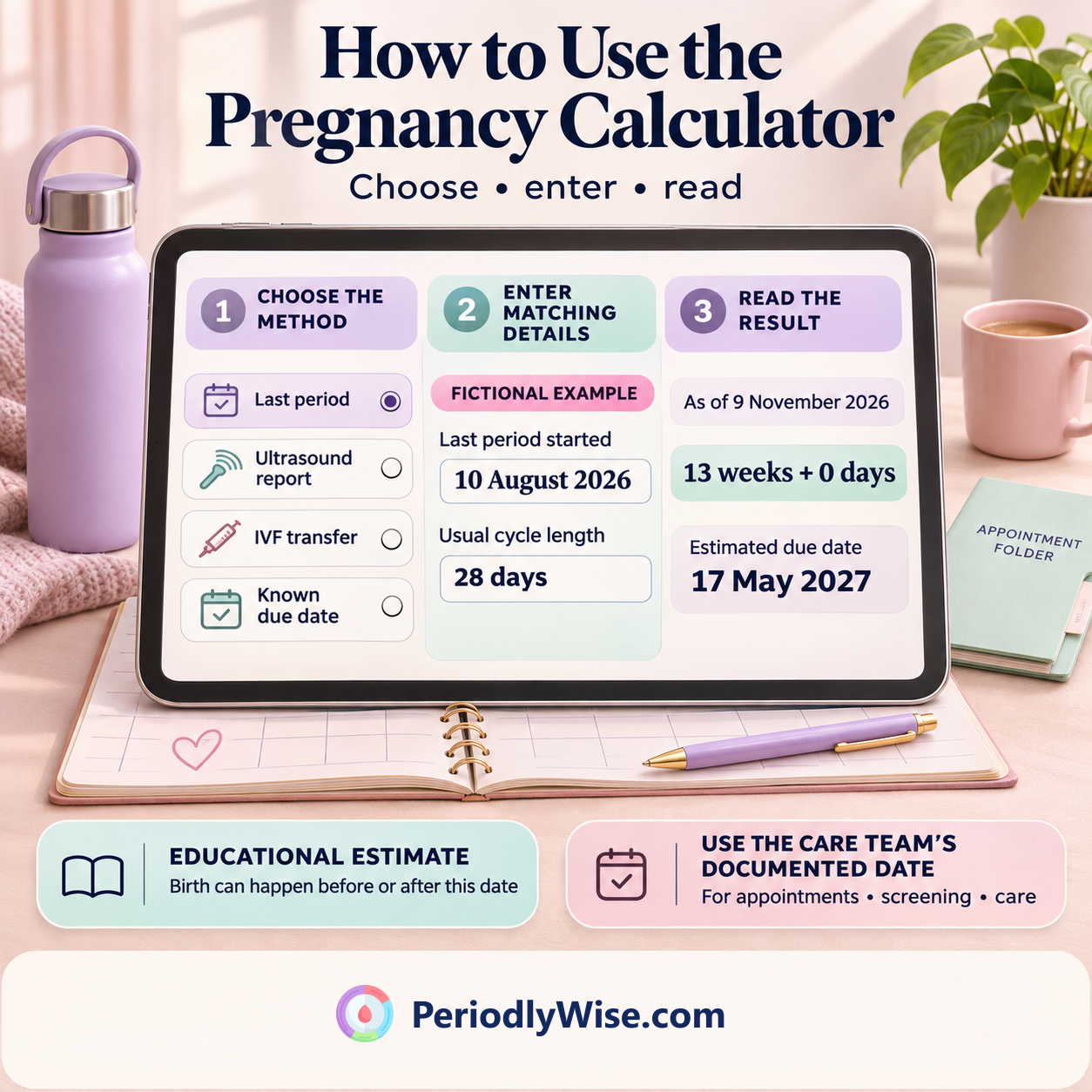
These examples show what the calculator returned with 9 November 2026 as its reference date. Your weeks and days advance with the date under the result heading. The due date for the same inputs stays the same.
| Example | Values to enter | Result on the reference date |
|---|---|---|
| ExampleLast period with a 28-day cycle | Values to enterLast period started 10 August 2026. Usual cycle length 28 days. | Result on the reference date13+0. Estimated due date 17 May 2027. |
| ExampleDay-5 IVF transfer | Values to enterTransfer on 26 October 2026. Embryo age at transfer 5 days. | Result on the reference date4+5. Estimated due date 14 July 2027. |
| ExampleInitial comparison of period and scan dates | Values to enterReliable last-period date 10 August 2026. First appropriate scan on 19 October 2026 reported 8 weeks and 6 days. | Result on the reference datePeriod estimate 17 May 2027 and scan estimate 25 May 2027. The educational comparison returns 11+6 and 25 May 2027. |
In the third example the period-based age on the day of the scan is 10+0. The report gives 8+6, a difference of eight days. In that age range the ACOG table uses a difference of more than seven days when considering initial redating. If you instead indicate that a clinician already established the date and enter 17 May 2027, the calculator retains it. Only your care team can determine whether a clinical date should change.
You can also reproduce the first timeline by entering 10 weeks and 0 days on a scan dated 19 October 2026, using an established due date of 17 May 2027, or entering an estimated conception date of 24 August 2026. The same output can follow from different inputs. Choose the method that reflects how your date was established.
Read your estimated age, due date and timeline
- Weeks + days. An age of 13+0 means 13 completed gestational weeks and zero extra days. Gestational age uses the prenatal dating convention, which generally starts before fertilization. Check the reference date under the age when comparing the result with an older scan or saved record.
- Estimated due date. This is the 40+0 point of the calculated timeline. The result also shows the trimester and days until or since that estimate. The actual day of birth can fall on either side of it.
- Dating method and assumptions. This panel shows the calculation and assumptions behind the result. Read it when two methods return different dates or you want to know which inputs the tool used.
- The chapters ahead. places trimester and term milestones on your estimated calendar. Use your care team’s schedule for appointments, screening and other decisions.
Explore the week-by-week guide and growth references
If your result includes a size illustration, select Learn more to jump to the corresponding week in A growing story.. You can also open the guide independently and use the slider or arrows to explore weeks 4–41. Moving through the guide leaves your due date and current estimated age in place. You can enlarge the stage illustration or switch between metric and imperial units.
The fruit and object comparisons give a rough sense of scale. Several weeks may use the same stage illustration while the development text changes by week. Check the length label when comparing numbers. Early references generally describe head-to-bottom length, while later references can describe head-to-heel length. A change in the measuring convention can make neighboring values look farther apart.
In Growth, with context., the weight chart shows published population reference values for weeks 14–40, including the median and the band from the 10th to the 90th percentile. The length and weight views are educational references. Entering dates does not supply an ultrasound measurement, calculate your baby’s individual percentile or tell you whether growth is on track.
Save, export or clear an estimate
- Save to your account. Sign in, calculate with your own dates, then choose Save Record. The record keeps the dating inputs used for that estimate and a dated result. In the saved records area you can add a note, edit the dating inputs, download the record or delete it. The example is for practice and cannot be saved as an account record.
- Keep a copy without signing in. Use Copy summary for text, Download PNG for an image or Print / PDF to print or save through your browser’s PDF dialog. The saved record card has its own PNG download, which can include the saved note. Share uses your device’s share feature when available and can fall back to copying the summary.
- Choose what you share. The calculator works in your browser without an account. Saving sends the record to your account. A copied, downloaded, printed or shared result can contain the dates and pregnancy information you entered or calculated. Review it before you send it or leave it on a shared device.
Know when to rely on your care team
The calculator is an educational aid for reading dates. It cannot confirm pregnancy, determine whether a pregnancy is developing normally, interpret a scan for you or predict the day you’ll give birth. Use the due date and care plan documented by your clinician. If the period date is uncertain, reports disagree, or the comparison asks for clinical review, bring the original report and dates to your next discussion.
For more detail, see Gestational Age vs. Fetal Age: Why Pregnancy Weeks Differ for the two ways people count pregnancy weeks, Why Is My Ultrasound Due Date Different From My Last Period? for differences between period and scan estimates, and How to Calculate Pregnancy Weeks After IVF Transfer for how embryo age and transfer timing work together.
Frequently asked questions
Do I need an account to use the calculator?
You can enter dates, explore the weekly guide and export a result without signing in. Sign in when you want to keep, edit or download an estimate from your account records.
Why did my weeks and days change while the due date stayed the same?
Your pregnancy age is calculated as of the date shown under the result. A new day adds a day to that age. With the same dating inputs, the estimated due date stays fixed.
What if my cycles are irregular or I’m unsure when my last period started?
Use a documented due date, dating scan report or IVF transfer record if you have one. If the period date is all you know, treat the period-based estimate with extra caution and ask your care team how to date the pregnancy.
Which date should I use if a newer scan shows a different due date?
Use the date your care team documented and ask about the difference. The comparison mode explains some initial dating discrepancies. It cannot decide whether a date should be changed after it has been established.
Does the size illustration show how big my baby is?
It describes a general development stage using a familiar size comparison. Your care team can explain what individual scan measurements mean in the context of your pregnancy.
Explore how pregnancy weeks and an estimated due date are calculated. Use the date your care team has documented for your appointments.
Use the Pregnancy Calculator